> ## Documentation Index
> Fetch the complete documentation index at: https://docs.abusix.com/llms.txt
> Use this file to discover all available pages before exploring further.

# Playbooks

> Automated workflows for handling Guardian Ops cases with configurable nodes and conditional logic

Playbooks are automated or semi-automated workflows that define how cases should be handled in Guardian Ops. They allow you to orchestrate complex case management processes, from simple notifications to sophisticated multi-step workflows involving delays, conditional logic, API integrations, and automatic resolution.

## Overview

Playbooks operate on [cases](/docs/guardian-ops/cases) and provide workflow automation for your abuse management processes. Each playbook is attached to a [case group](/docs/guardian-ops/cases#case-creation-and-rules), and cases flowing into that group are automatically processed according to the playbook's configuration.

## Prerequisites

Before you can use playbooks, you must have:

1. **Case groups configured** in your [inbound processing](/docs/guardian-ops/inbound-processing) flow
2. **Events flowing to case groups** - Verify your inbound processing routes events to case groups
3. **API endpoints** (optional) - If using API Caller nodes, ensure your APIs are accessible
4. An **SMTP Server** configured in order to send mail notifications. (Coming soon..)

<Warning>
  Playbooks only execute when attached to a case group. Without case groups configured in inbound processing, playbooks will not process any cases.
</Warning>

## Playbook Versions

Unlike inbound processing (which only allows one active flow at a time), playbooks support multiple versions:

* **Multiple playbooks** can exist simultaneously
* Each playbook can have **multiple versions**
* **One version per playbook** can be live/active at a time
* You can maintain different playbooks for different case groups

## Available Nodes

<div className="flex items-start gap-6">
  <div>
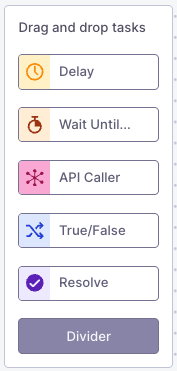
    The following nodes are available for building your playbook workflows:

    * **[Delay](/docs/guardian-ops/node-reference#delay-node)** - Add time delays in case processing
    * **[Wait Until](/docs/guardian-ops/node-reference#wait-until-node)** - Wait for conditions to be met or timeout
    * **[API Caller](/docs/guardian-ops/node-reference#api-caller-node)** - Make HTTP requests to external systems
    * **[True/False](/docs/guardian-ops/node-reference#true-false-node)** - Conditional logic branching
    * **[Manual](/docs/guardian-ops/node-reference#manual-node)** - Human decision points requiring agent intervention
    * **[Email Notification](/docs/guardian-ops/node-reference#email-notification-node-coming-soon)** - Send templated email notifications (coming soon)
    * **[Trigger](/docs/guardian-ops/node-reference#trigger-node-coming-soon)** - External trigger points for workflows (coming soon)
    * **Resolve Case** - Mark cases as resolved

    For detailed information about each node, see the [Node Reference](/docs/guardian-ops/node-reference).
  </div>

  <img src="https://mintcdn.com/abusixinc/jKt6nd_ExjFYEDwp/images/gops/playbooks-nodes.png?fit=max&auto=format&n=jKt6nd_ExjFYEDwp&q=85&s=4be9af74e532244ae9c4fc82034aee25" alt="Playbook Nodes" className="border flex-shrink-0 mt-0 mb-0" width="177" height="371" data-path="images/gops/playbooks-nodes.png" />
</div>

## Creating and Managing Playbooks

### Creating a New Playbook

1. Navigate to [Playbooks settings](https://app.abusix.com/guardian/ops/settings/playbooks) in Guardian Ops
2. Click **New Playbook**
3. Provide a descriptive name (e.g., "Copyright Cases", "Spam Handling")
4. In the prompt, provide a version name (e.g., "Version 1", "Initial Release")
5. Click **Create**

Your new playbook is created in draft state with an initial version.

### Building Your Playbook Flow

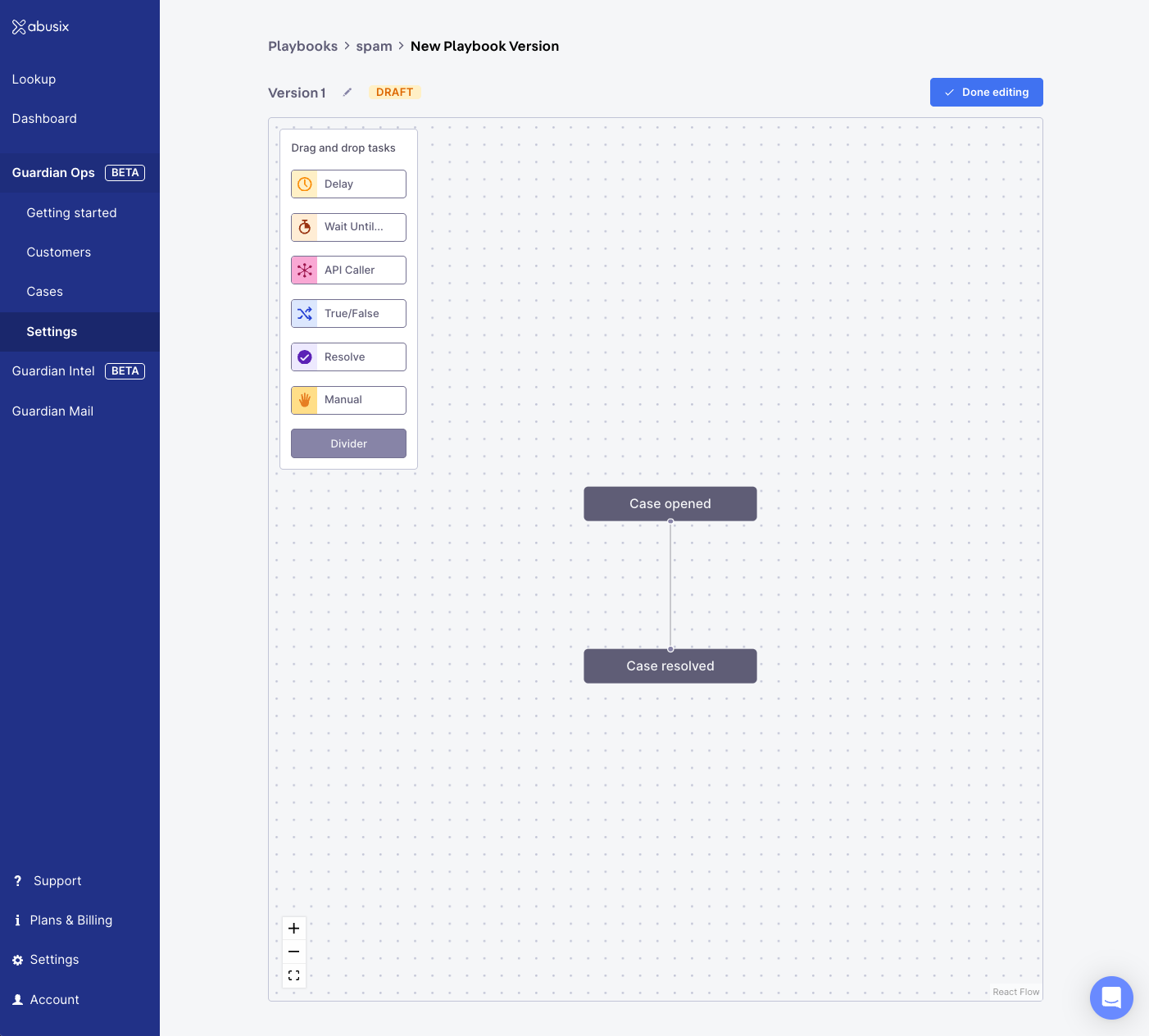
1. Click **Edit** on your playbook version
2. Drag and drop nodes from the left panel into free slots in the flow
3. Click each node to configure its settings
4. Add conditional logic using True/False nodes
5. Include delays or waiting conditions as needed
6. Click **Done editing** when finished

<div className="mx-auto" style={{ width: "90%" }}>
  <img src="https://mintcdn.com/abusixinc/jKt6nd_ExjFYEDwp/images/gops/playbooks-new-version.png?fit=max&auto=format&n=jKt6nd_ExjFYEDwp&q=85&s=f00c37804615259d1e7a4176f15ae89f" alt="Playbook visual editor interface" className="border mb-2" width="1402" height="1264" data-path="images/gops/playbooks-new-version.png" />

  <p className="text-sm text-gray-600 mb-4 ml-4">
    <strong>Playbook Editor:</strong> Drag-and-drop interface for building case workflows.
  </p>
</div>

### Managing Versions

Each playbook can have multiple versions, allowing you to iterate on your workflows:

**Creating a New Version:**

1. Select your playbook from the list
2. Click **New Version**
3. Provide a version name
4. Build or modify the workflow
5. Activate when ready

**Activating a Version:**

1. Select the version you want to activate
2. Click **Activate**
3. The version becomes live and processes new cases
4. Previous version remains available for reference or rollback. All remaining cases will finish processing in the previous version.

See [Flow States](/docs/guardian-ops/reference/flow-states#activating-flows) for detailed information about activation.

## Attaching Playbooks to Case Groups

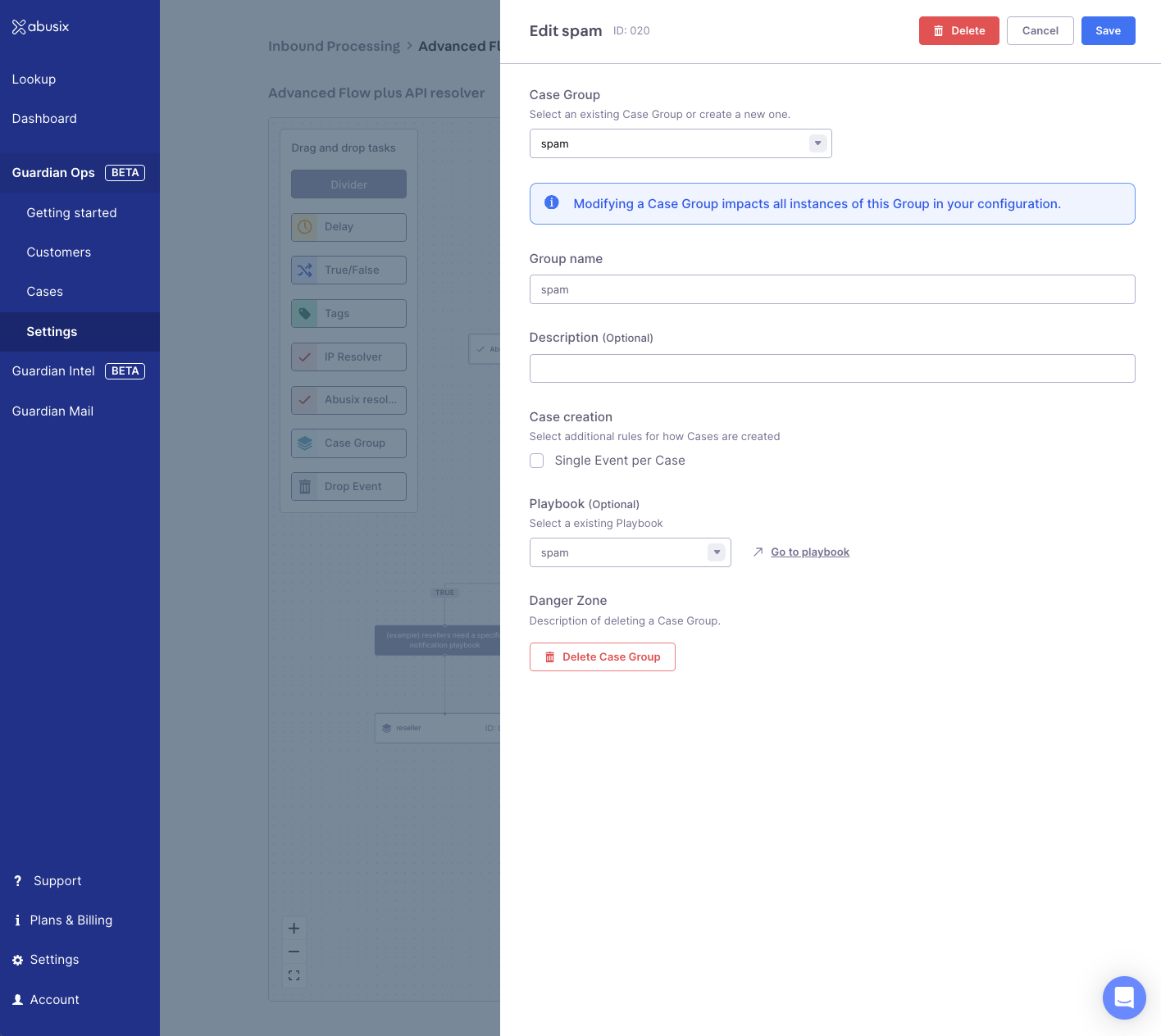
Playbooks must be attached to case groups to execute. This is done in your inbound processing configuration.

### Steps to Attach

1. Navigate to [Inbound Processing settings](https://app.abusix.com/guardian/ops/settings/inbound-processing)
2. Open the flow configuration that contains your case group
3. Click on the **Case Group Node** you want to configure
4. In the node settings, select your playbook from the dropdown
5. Click **Save**
6. Click **Done editing**
7. Activate the inbound processing flow

<div className="mx-auto" style={{ width: "90%" }}>
  <img src="https://mintcdn.com/abusixinc/jKt6nd_ExjFYEDwp/images/gops/playbooks-attach-to-casegroup.png?fit=max&auto=format&n=jKt6nd_ExjFYEDwp&q=85&s=a37a4abc460e493dbddaa2cb5fad0ee2" alt="Case group with playbook assignment" className="border mb-2" width="1416" height="1264" data-path="images/gops/playbooks-attach-to-casegroup.png" />

  <p className="text-sm text-gray-600 mb-4 ml-4">
    <strong>Playbook Assignment:</strong> Attach playbooks to case groups in inbound processing.
  </p>
</div>

Once attached, all new cases flowing into that case group will be processed by the assigned playbook.

## Flow States

Playbooks use the same [flow states](/docs/guardian-ops/reference/flow-states) as inbound processing. Each playbook can have multiple versions, with one version active per playbook at a time.

## Troubleshooting

**Playbook Not Executing:**

* Verify the playbook is activated
* Check that the playbook is attached to a case group
* Ensure events are reaching the case group in inbound processing
* Check if cases of the releated case group are created
* Review the case group configuration in inbound processing

**API Calls Failing:**

* Check JSON view of playbook tab in the case (coming soon: failures shown in case history)
* Check API endpoint URLs and authentication
* Verify payload mapping is correct
* Review API response in case playbook execution details
* Review the playbook history in case details
* Ensure your firewall allows incoming requests from Abusix

> ⚠️ If your API is behind a firewall, ensure the following IPs are in your welcome lists and not blocked by any firewall:
>
> 18.193.183.51 | 52.57.46.129 | 18.158.191.233

***

## Related Resources

* [Cases in Guardian Ops](/docs/guardian-ops/cases)
* [Inbound Processing](/docs/guardian-ops/inbound-processing)
* [Node Reference](/docs/guardian-ops/node-reference)
* [Flow States](/docs/guardian-ops/reference/flow-states)
* [Getting Started Guide](/docs/guardian-ops/getting-started)