> ## Documentation Index
> Fetch the complete documentation index at: https://docs.abusix.com/llms.txt
> Use this file to discover all available pages before exploring further.
# Cases in Guardian Ops
> Learn how Guardian Ops creates and manages cases for abuse handling.
Cases in Guardian Ops serve as central aggregation points for managing abuse reports related to your network. When incoming events are processed through your [inbound processing](/docs/guardian-ops/inbound-processing) configuration, they are automatically grouped into cases based on the rules defined in your inbound processing.
Each case represents a collection of related abuse events that require investigation, tracking, and resolution. The system provides both a comprehensive overview for monitoring all cases and detailed investigation tools for in-depth analysis of specific reports.
Cases are the foundation for automation through [playbooks](/docs/guardian-ops/playbooks).
## Cases List
The cases list provides a centralized view for monitoring and managing selected abuse cases that have been filtered through your inbound processing setup. This interface enables you to quickly identify high-priority reports, filter cases by type or status, and navigate to detailed investigation tools.
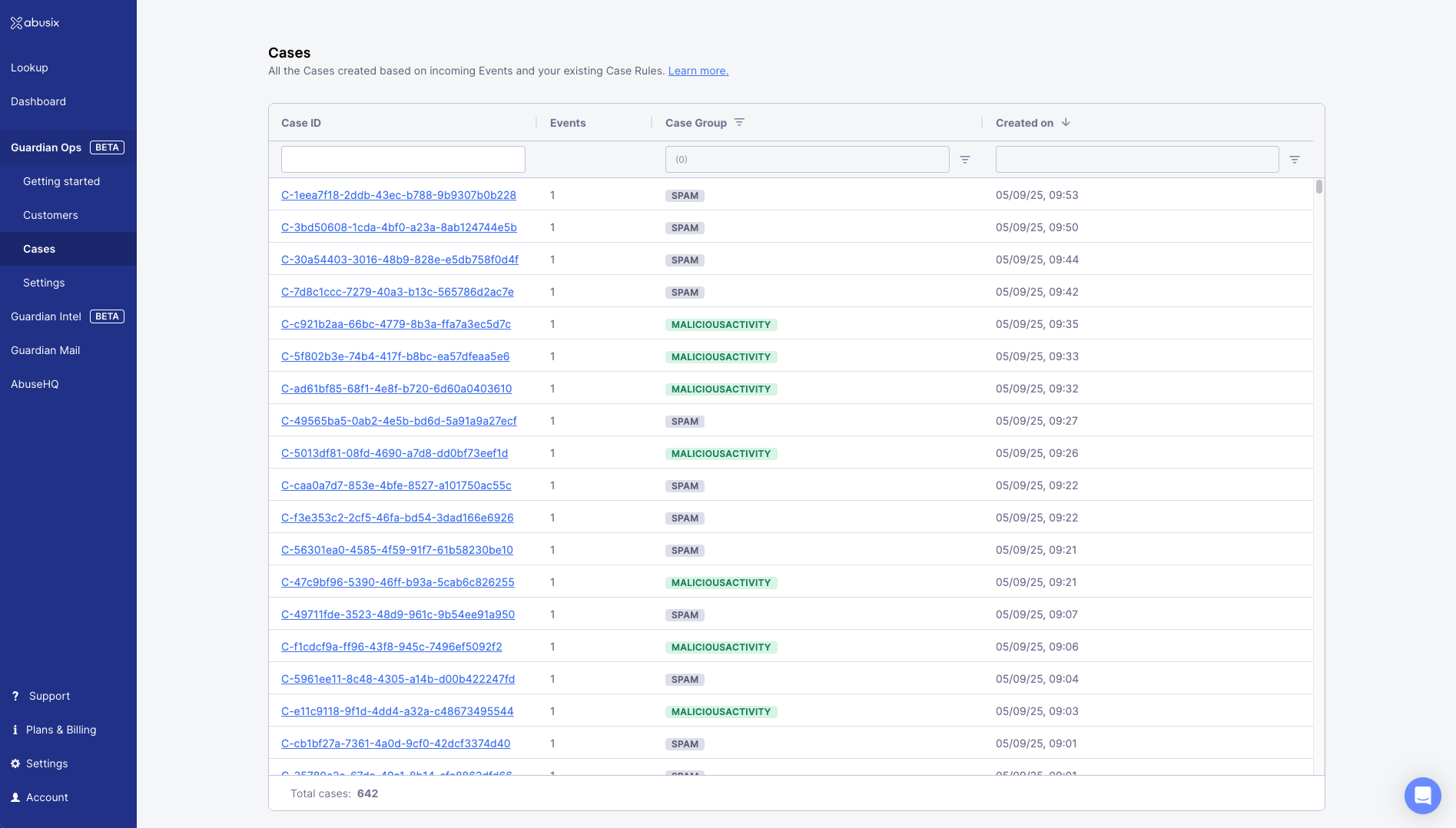
Cases List: Overview table showing case IDs, event counts, case groups, and creation timestamps.
## Case Details
When you select a specific case from the list, Guardian Ops opens the detailed case view, providing investigation capabilities through multiple tabs.
### Case Overview
Here you can see the details of individual cases where you can track case status, assign responsibility, integrate with automation workflows, and coordinate team collaboration.
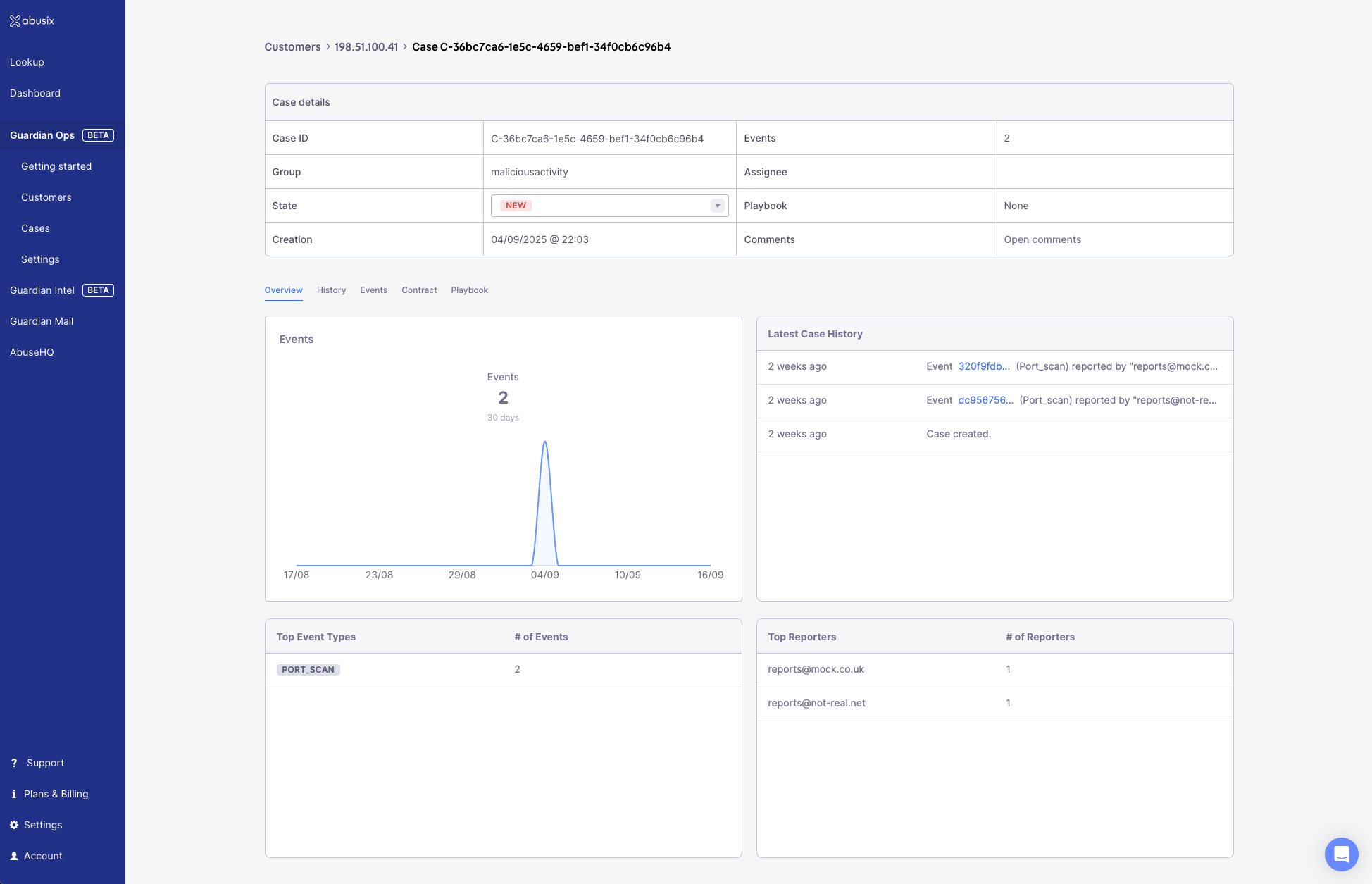
Case Details Overview: Case management panel with timeline chart, event metrics, and reporter analysis.
Key management functions include:
* **State Management**: Update case status through the dropdown (new, in progress, resolved, and closed)
* **resolved**: Case was handled successfully, e.g. the customer has mitigated the issue, no new reports were seen
* **closed**: Use whenever a case is not successfully resolved. For example: case is ignored, handled in a different workflow, etc.
* difference to AbuseHQ: these states are fixed and independent from playbooks
* **Assignment**: Assign cases to specific team members for accountability
* **Playbook Interaction**: Action on manual node prompts
* **Collaboration**: Access comments system for team coordination
* **Customer Context**: Navigate to related customer information
### History
Maintain a complete audit trail of case progression for compliance and accountability purposes. The history tab chronologically tracks all case activities, system actions, and status changes, providing essential documentation for regulatory requirements and internal process reviews.
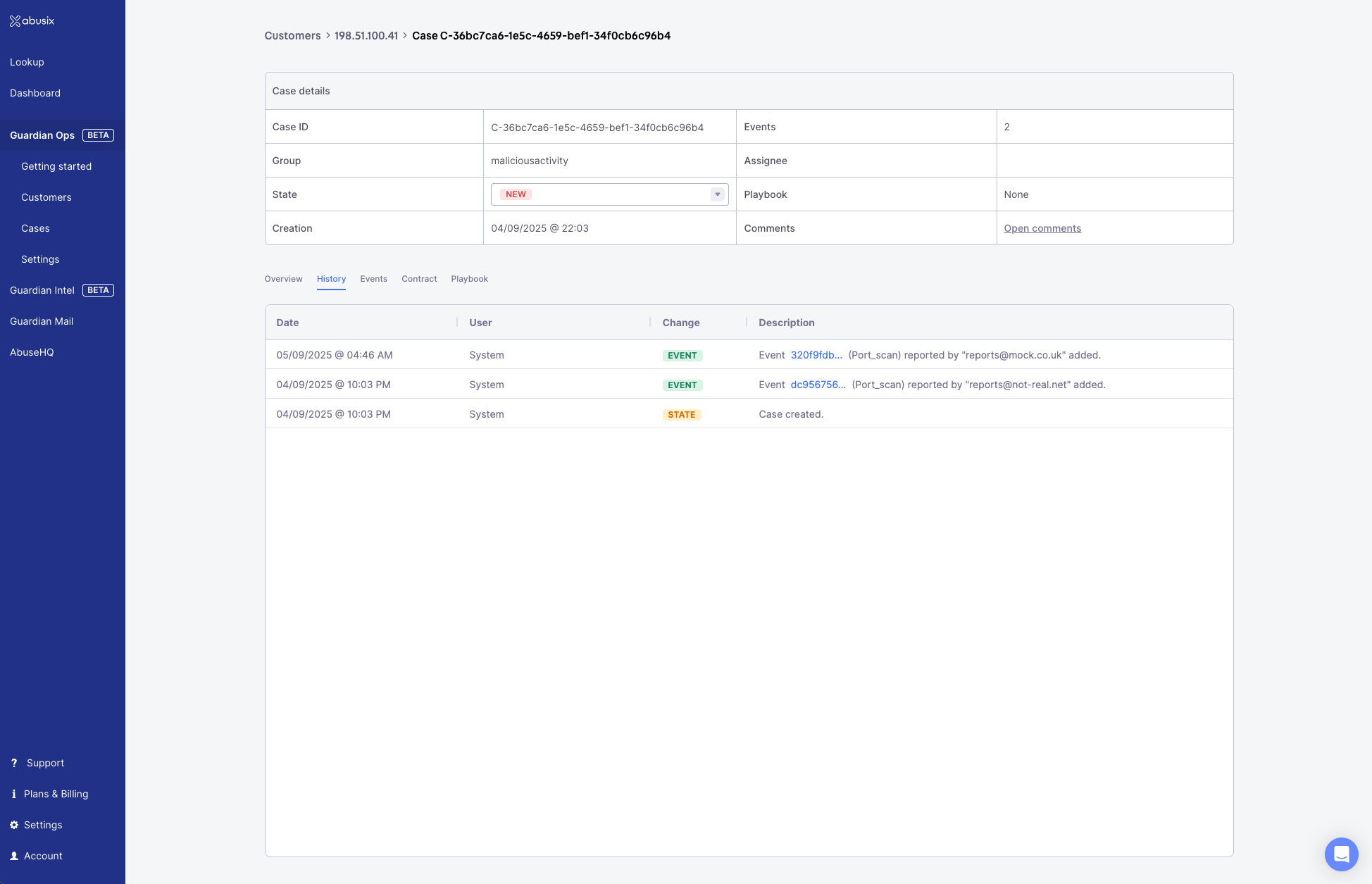
History Tab: Chronological audit log tracking case activities, system actions, status changes, and comments.
### Events
Drill into individual abuse reports to understand patterns and gather evidence for your actions. The events tab lists all associated abuse reports with detailed information about reporters, event types, timestamps, and other metadata parsed from your abuse reports.
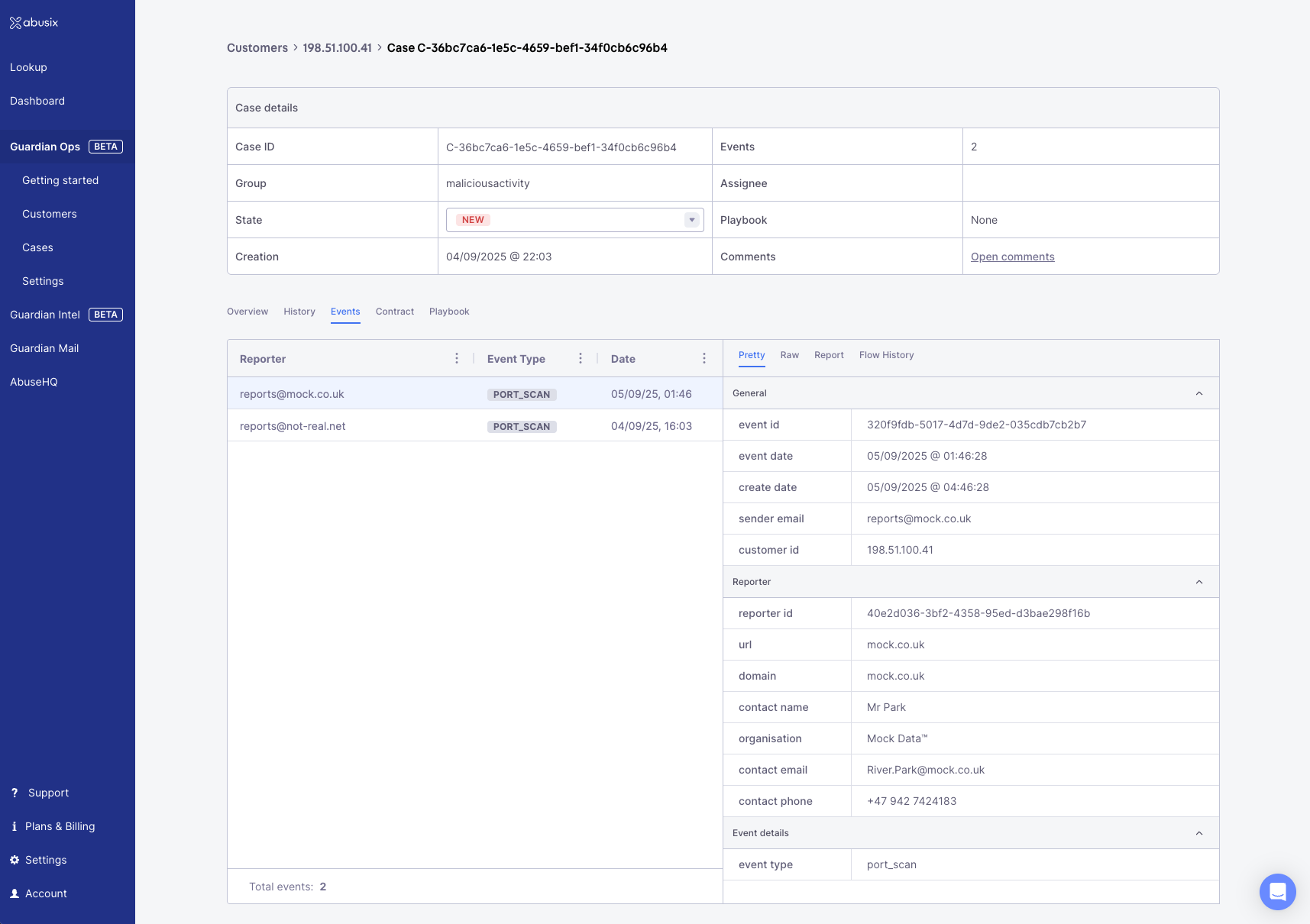
Events Tab: Individual abuse reports with reporter details, event types, and timestamps for investigation.
Select individual events to access detailed information for thorough investigation and evidence collection.
### Contract
Identify which specific customer services or contracts are affected by the abuse reports. This information enables targeted remediation efforts and facilitates precise customer communication about the specific services requiring attention.
Examples of contract types include: DSL, Mobile, VServer, Hardware, Reseller (these are just examples - Guardian Ops supports any contract types you have)
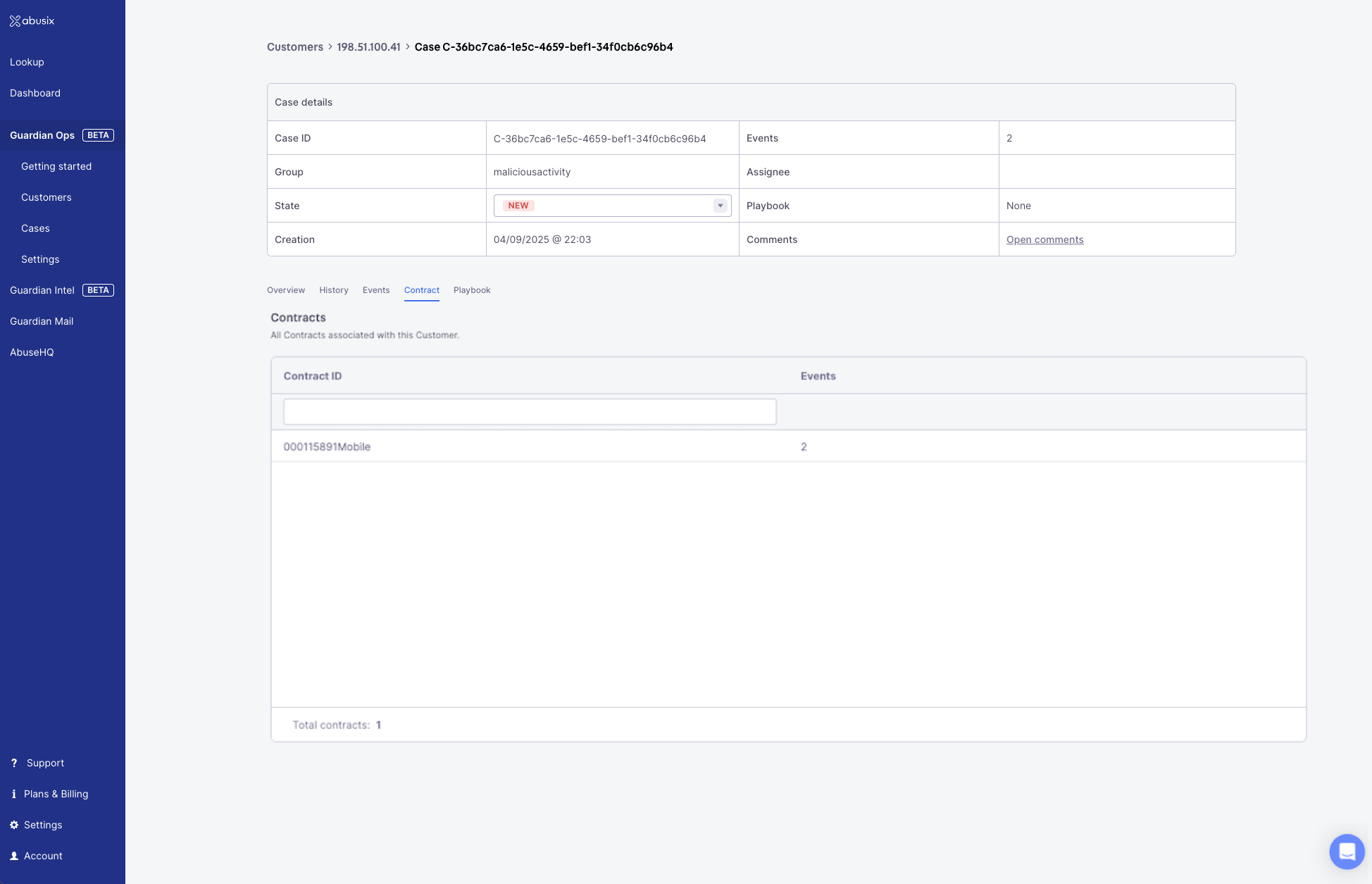
Contract Tab: Customer contracts associated with the case, showing contract IDs and event counts for each contract.
### Playbook
Monitor automation execution and troubleshoot workflow issues through the playbook tab.
When cases are assigned to playbooks, this view provides detailed execution data in JSON format, allowing you to verify automated actions and debug playbook logic when necessary.
If a playbook requires manual intervention (e.g. manual node path selection), you will be able to pick the next steps here.
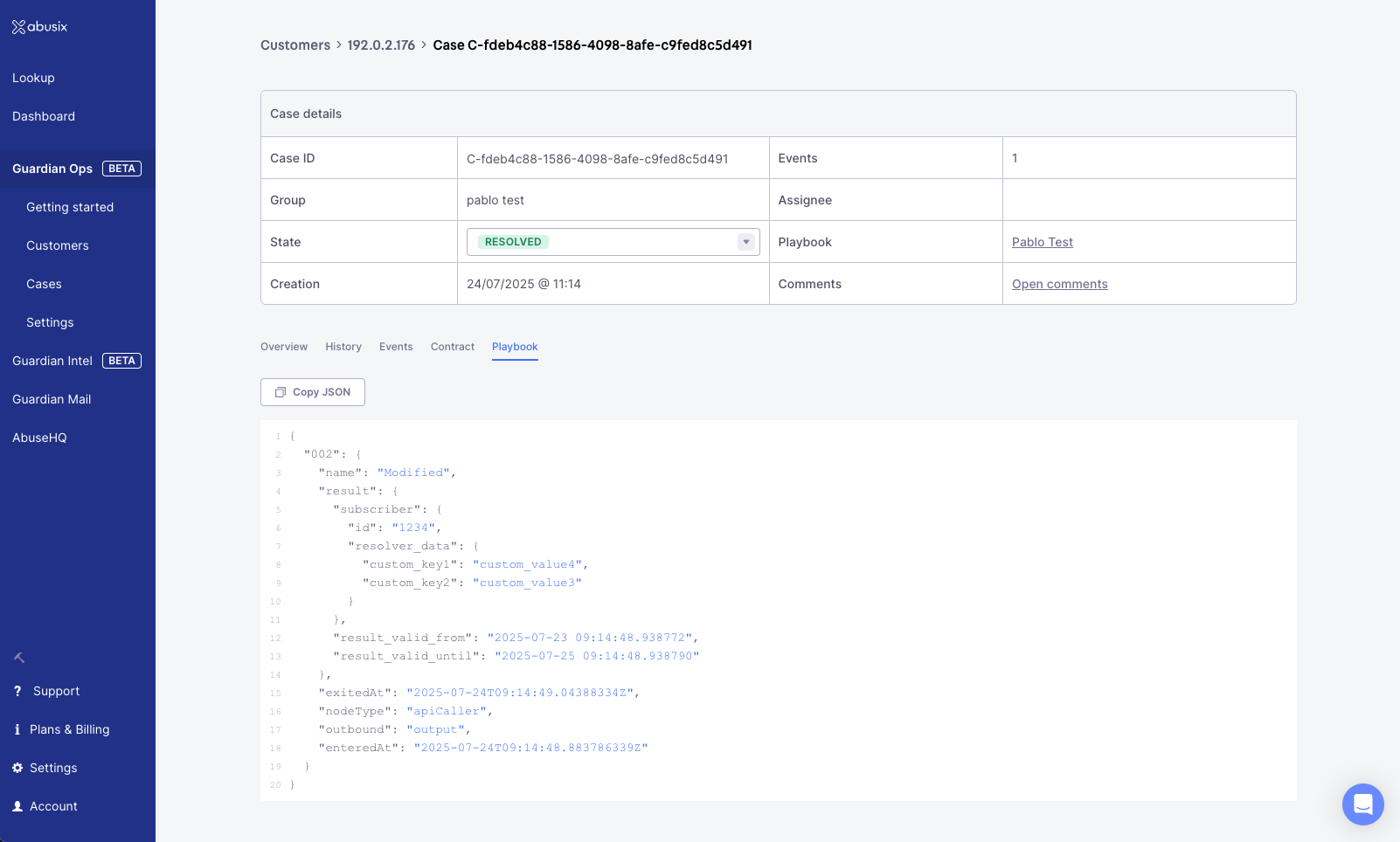
Playbook Tab: Automation execution details with JSON data for monitoring and debugging playbook workflows.
## Case Creation and Rules
Cases are automatically created based on the configuration in your inbound processing. When events reach a Case Group Node in your processing workflow, they are assigned to cases according to your defined case rules.
### Default Case Rule
By default Guardian Ops creates no cases. If case groups are configured, Guardian Ops creates one case per customer for incoming events. The system searches for existing open cases for the same customer before creating new ones, ensuring efficient case consolidation.
### Customization Options
You can customize case creation behavior through several options:
* **Single Event per Case**: Generate a new case for every incoming event
* **Separate Case per Contract**: Create individual cases for each customer contract (Coming soon)
These rules are configured within your [inbound processing](/docs/guardian-ops/inbound-processing) flows, where Case Group Nodes determine the final destination for processed events. You can access your inbound processing configuration [here](https://app.abusix.com/guardian/ops/settings/inbound-processing).