> ## Documentation Index
> Fetch the complete documentation index at: https://docs.abusix.com/llms.txt
> Use this file to discover all available pages before exploring further.

# Certificate authorities

> Trust your own certificate authorities so Abusix Ops integrations can reach services that use a private PKI.

Abusix Ops verifies the TLS certificate of every service your flows call, against publicly trusted certificate authorities. If one of your services uses a certificate issued by your own private PKI, such as an internal API, a SOAR platform, or a system behind a TLS-inspecting proxy, that verification fails and the call does not go through.

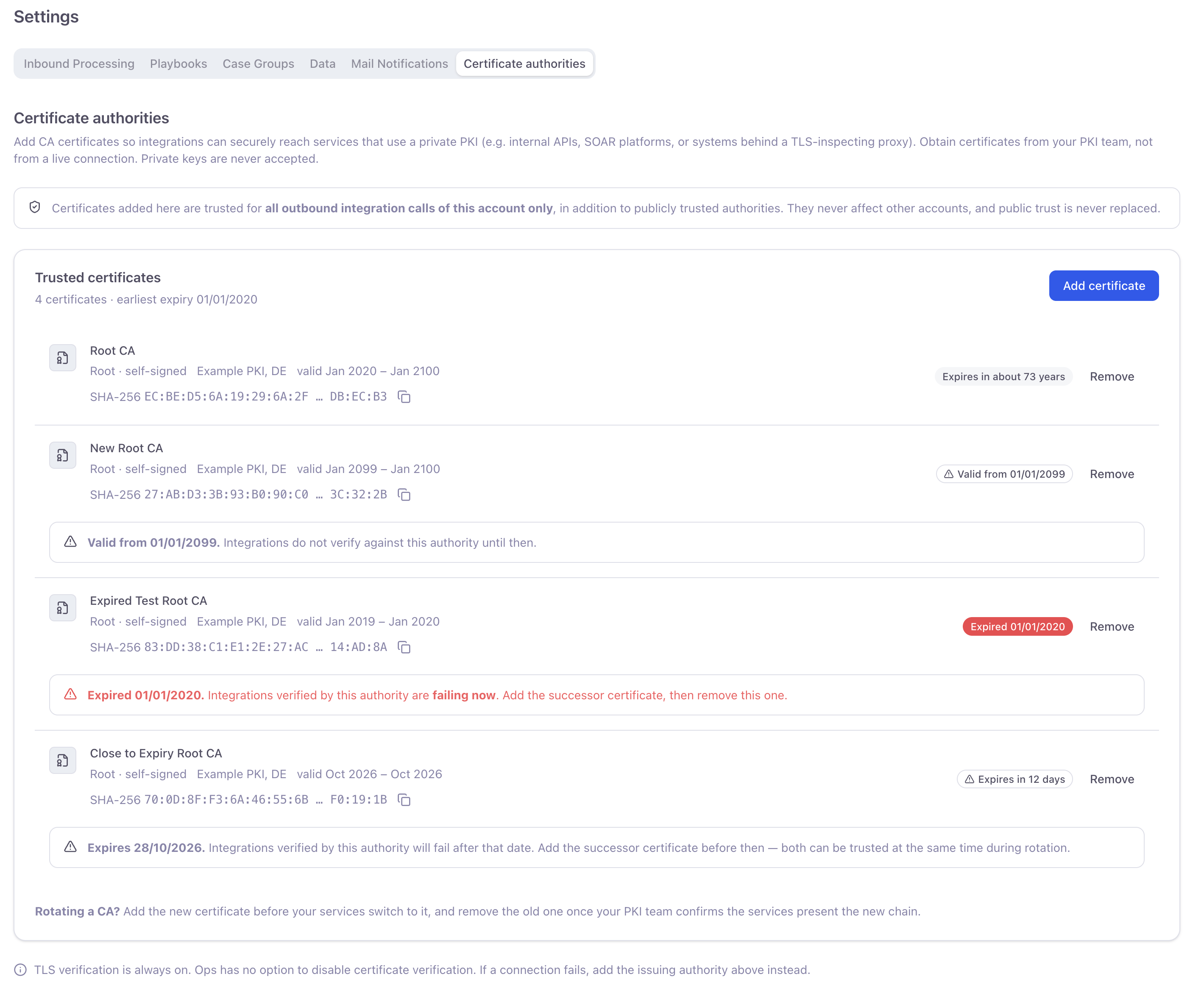
On the **Certificate authorities** page you add the certificate of the authority that issued your service's certificate. Abusix Ops then trusts that authority for your account's outbound calls, and the call succeeds with full TLS verification.

You can find the page in your settings at [Certificate authorities](https://app.abusix.com/ops/settings/certificate-authorities).

## Scope of trust

* **Your account only.** A certificate you add is trusted for the outbound calls of your account's flows, such as the [API Caller](/docs/abusix-ops/node-reference#api-caller-node) nodes in your inbound processing flow and in your playbooks, and for the API Caller's **Test** button. It never affects other accounts.
* **In addition to public trust.** Publicly trusted authorities stay trusted. Adding a certificate never replaces them.
* **Verification is always on.** Abusix Ops has no option to disable certificate verification. If a connection fails verification, add the authority that issued the service's certificate instead.

Admins and account owners can add and remove certificates. Members can view them.

<div className="mx-auto" style={{ width: "90%" }}>
  <img src="https://mintcdn.com/abusixinc/b5jlqumqZe1u9Cb2/images/gops/gops-settings-certificate-authorities.png?fit=max&auto=format&n=b5jlqumqZe1u9Cb2&q=85&s=2dd6dc2b15e10b0957c5a732a8806fbf" alt="Certificate authorities page" className="border mb-2" style={{ width: "100%" }} width="2840" height="2350" data-path="images/gops/gops-settings-certificate-authorities.png" />

  <p className="text-sm text-gray-600 mb-4 ml-4">
    <strong>Certificate authorities:</strong> trusted certificates with their expiry state.
  </p>
</div>

## What to provide

Add the certificate of a **certificate authority**: the root CA of your private PKI, or the intermediate CA that issued your service's certificate.

* **One certificate per upload**, in PEM format: a text block that starts with `-----BEGIN CERTIFICATE-----` and ends with `-----END CERTIFICATE-----`. A file can be at most 16 KiB.
* **A CA certificate, not a server certificate.** The certificate a service presents for its own hostname is not accepted; add the authority that issued it.
* **Never a private key.** A private key is never needed and is never accepted, also not in the same file as the certificate.
* **Not expired.** An expired certificate is rejected. A certificate that is not valid yet is accepted, so you can add a successor ahead of a rotation.

Your account can hold up to 10 certificates. To trust several private PKIs, or an old and a new authority during a rotation, add each certificate separately.

## Obtain the certificate from your PKI team

Ask the team that runs your private PKI for the CA certificate, in PEM format.

Don't copy the certificate from a live connection to your service, for example from your browser or a command-line client. A connection shows whatever certificate chain the other end presents, which can be a proxy's or an attacker's chain rather than your PKI's, so trusting it could let a third party read your integration's traffic.

## Add a certificate

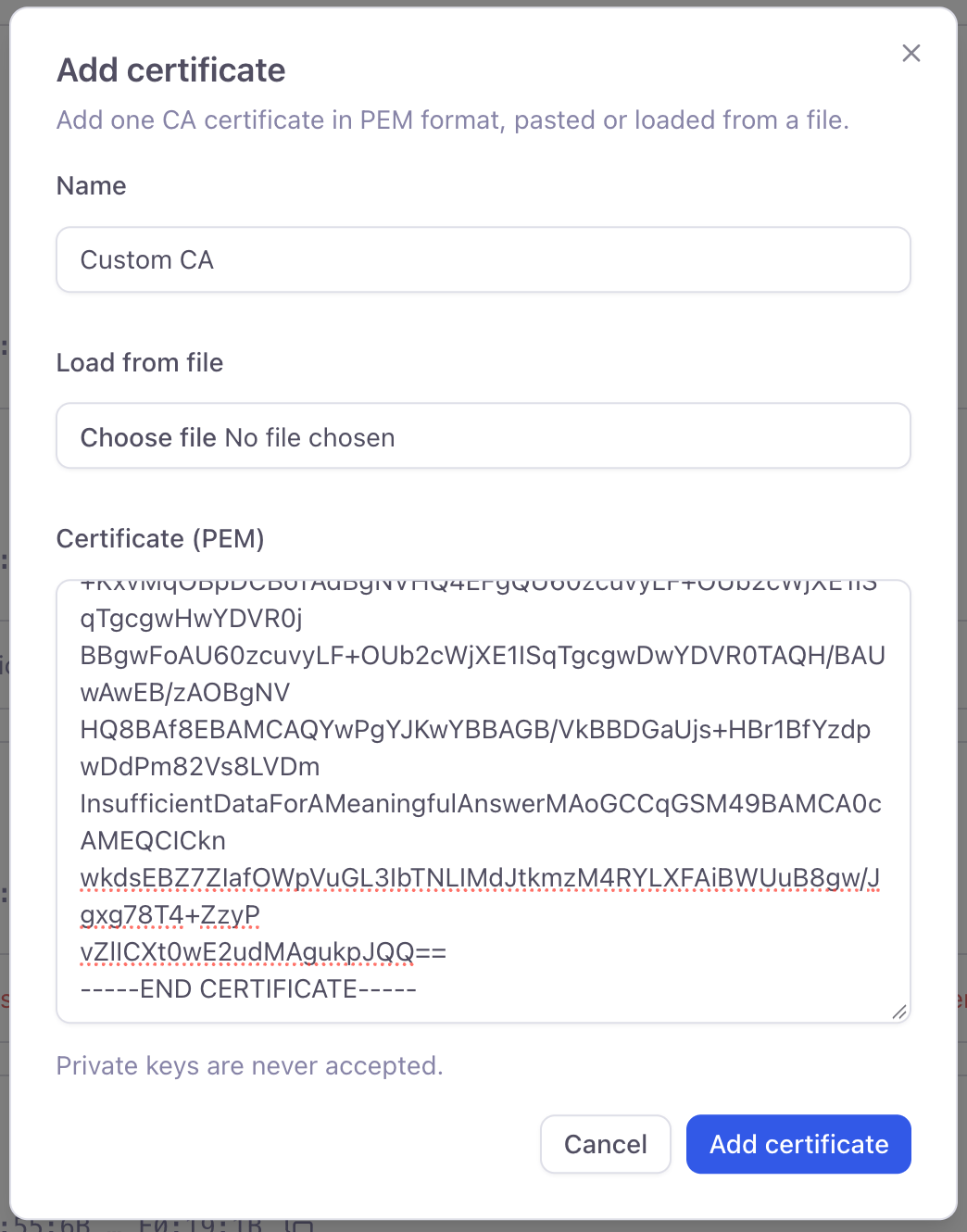
1. Go to [Certificate authorities](https://app.abusix.com/ops/settings/certificate-authorities) and click **Add certificate**.
2. Enter a name that helps you recognise the certificate later, for example `Example Corp Root CA 2026`.
3. Paste the PEM text into the certificate field, or load it from a file.
4. Click **Add certificate**.
<div className="mx-auto" style={{ width: "90%" }}>
  <img src="https://mintcdn.com/abusixinc/b5jlqumqZe1u9Cb2/images/gops/gops-settings-certificate-authorities-add.png?fit=max&auto=format&n=b5jlqumqZe1u9Cb2&q=85&s=30f835f943d4be46db3a1a98c719ef61" alt="Add certificate dialog" className="border mb-2" style={{ width: "100%" }} width="1044" height="1330" data-path="images/gops/gops-settings-certificate-authorities-add.png" />

  <p className="text-sm text-gray-600 mb-4 ml-4">
    <strong>Add certificate:</strong> a name and one CA certificate in PEM format.
  </p>
</div>

If the certificate cannot be added, the dialog tells you why:

| Message | What to do |
| - | - |
| This is not a PEM certificate. | Paste the full PEM text, including the `BEGIN CERTIFICATE` and `END CERTIFICATE` lines. |
| Paste exactly one certificate. Private keys and other blocks are never accepted. | Remove any private key and any further certificates, and add each certificate on its own. |
| This certificate is not a certificate authority. | You provided a server certificate. Ask your PKI team for the certificate of the authority that issued it. |
| This certificate has already expired. | Ask your PKI team for the current certificate. |
| This certificate has already been added. | Nothing to do: your account already trusts it. |
| This account already holds the maximum of 10 certificates. | Remove a certificate you no longer need, then add the new one. |

## When changes take effect

A certificate you add or remove reaches your flows that are already running within a few minutes, without republishing them. The API Caller's **Test** button uses your current certificates right away.

## Expiry and rotation

Every certificate shows its expiry state. The card also shows the earliest expiry of all your certificates.

| State | Meaning |
| - | - |
| Expires in … | The certificate is valid for more than 30 days. |
| Expires in … (with a warning) | The certificate expires within 30 days. Calls verified by this authority will fail after that date. |
| Expired … | Calls verified by this authority are failing now. |
| Valid from … | The certificate is not valid yet. Calls do not verify against it until that date. |

To rotate a certificate authority:

1. Add the new certificate before your services switch to it. Both certificates are trusted at the same time.
2. Once your PKI team confirms that your services present the new chain, remove the old certificate.

## Remove a certificate

Click **Remove** next to the certificate and confirm. Calls that are verified by this authority stop working once the change has reached your flows, unless another certificate you trust also verifies them.


This documentation is built and hosted on [Mintlify](https://mintlify.com), a developer documentation platform.